Moneygment App Guide for Payments and Money Transfers
Updated: Aug 10, 2022

Written byVenus Zoleta
Mobile payment service providers are emerging in the Philippines, with GCash, PayMaya, and Coins.ph currently leading the mobile e-wallet industry. And then there's a new mobile app that offers a range of payment, remittance, and other financial services: the Moneygment app.
Looking for an alternative way to send money or pay for your bills and government contributions? Give Moneygment a try. Here's a beginner's guide to using the Moneygment app for different financial transactions in the Philippines.
What is Moneygment?
Moneygment App Guide - What is Moneygment?
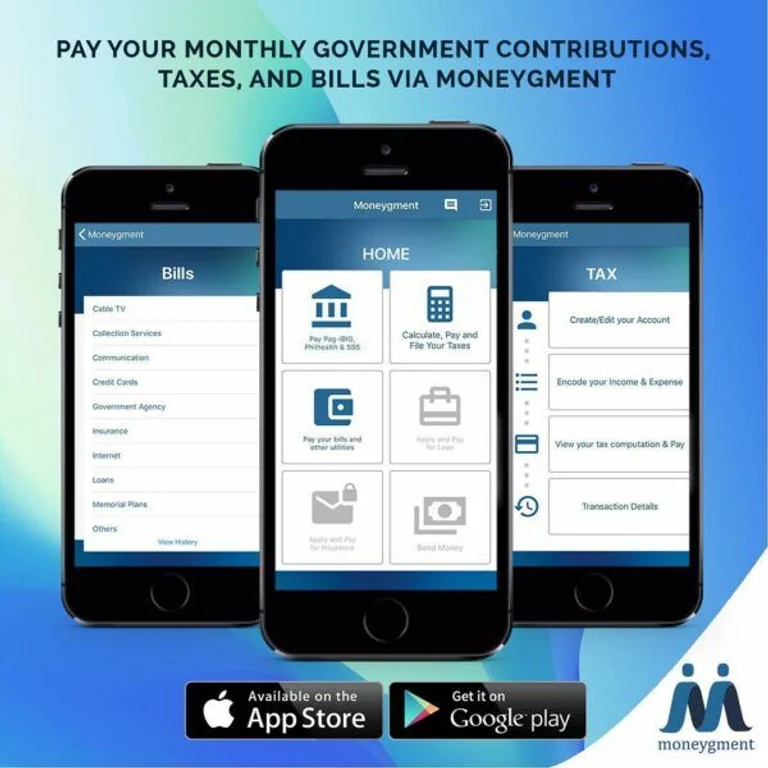
Moneygment is a mobile application that provides various financial services such as bills payment, money transfer, tax filing and payment, and more. As a one-stop-shop financial solution, this app makes financial transactions convenient for self-employed people, small and medium businesses, OFWs, and Filipinos without bank accounts.
The Moneygment app is developed by Togetech, Inc., a Philippine-based IT company that creates mobile apps to make financial services accessible to more Filipinos.
Moneygment App Review
Should you use the Moneygment app? To know if it's the right mobile app for you, check out the Moneygment reviews online. We've compiled and summarized the common feedback by Moneygment app users.
Pros of Using the Moneygment App
- Easy to use; smooth and hassle-free transactions
- Very convenient (since the app allows different kinds of financial transactions), especially for OFWs
- Excellent customer service, especially when it comes to Moneygment account upgrade
Cons of Using the Moneygment App
How to Register to Moneygment
Alternatively, you can sign up using your Facebook or Gmail account for faster Moneygment login. Simply tap on "Facebook" or "Gmail" to proceed with your registration and login process.
How to Upgrade Your Moneygment Account
Moneygment App Guide - How to Upgrade Moneygment Account
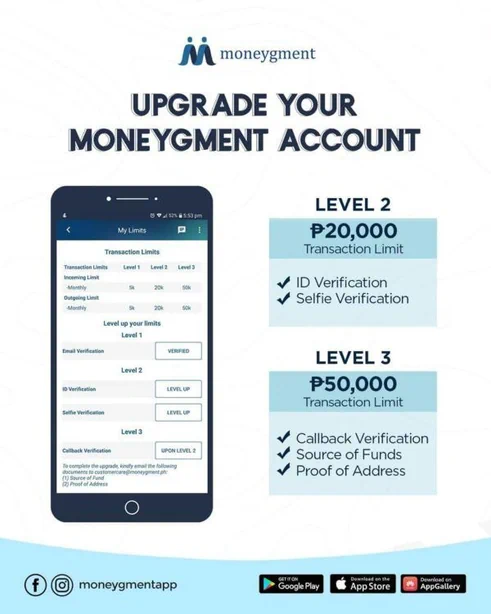
There's a monthly limit to every transaction with Moneygment depending on the level assigned to your account. After your Moneygment registration, your account will be automatically in Level 1. This means you can transact only up to PHP 5,000 every month using the app.
If you need a higher transaction limit, you'll have to upgrade your account. This involves completing additional verification procedures.
To upgrade to Level 2 with a monthly transaction limit of PHP 20,000, you need to go upload an image of your ID and your selfie with it. And to raise your transaction limit to PHP 50,000 per month, you'll be required to undergo a callback verification and submit your proof of income and proof of address.
How to Upgrade to Level 2 Moneygment Account (For Android Users)
- Open the Moneygment app and log in to your account.
- Tap the menu icon on the upper left corner of the home screen.
- Select "Upgrade Limit."
- Under Level 2, tap the Level Up button next to "ID Verification."
- In the ID type dropdown, select the particular type of valid ID you'll submit.
- Enter the ID number as shown in your ID card.
- Tap the Take a Picture button and snap a photo of your ID.
- Tap the Submit button.
- On the My Limits page, tap the Level Up button next to "Selfie Verification."
- Tap the Take a Picture button.
- Take a selfie with the ID card you've uploaded on the Moneygment app.
- Tap the Submit button.
How to Upgrade to Level 2 Moneygment Account (For iPhone/iPad Users)
Take a photo of your valid ID and send it as an attachment to compliance@moneygment.ph, along with your name and Moneygment account email address.
Snap a selfie with the valid ID you've emailed to Moneygment. Email your selfie (with your name and Moneygment account email address) to compliance@moneygment.ph.
How to Upgrade to Level 3 Moneygment Account
How to Top Up Moneygment Wallet
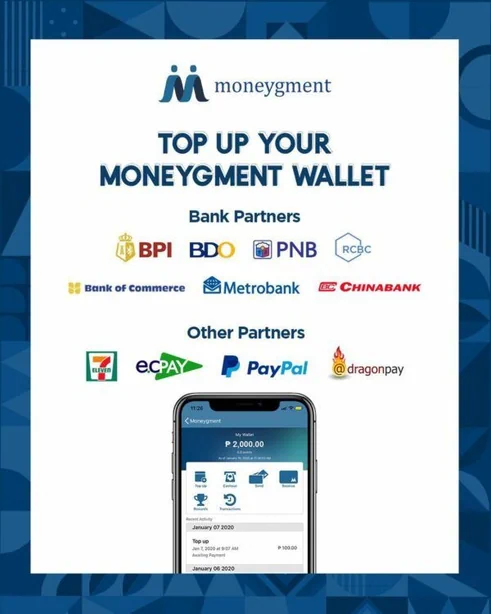
Moneygment App Guide - Moneygment Top Up
The Moneygment app has an electronic wallet feature that works like that of GCash and PayMaya. The Moneygment wallet functions like a virtual bank account where funds for your various transactions will come from. It's set as the main payment method for transactions using the app.
To make a payment or remittance through the Moneygment app, you need to have enough funds in your e-wallet. Here's how to add funds to your Moneygment wallet.
How to Pay for Government Contributions or Loans Using Moneygment App
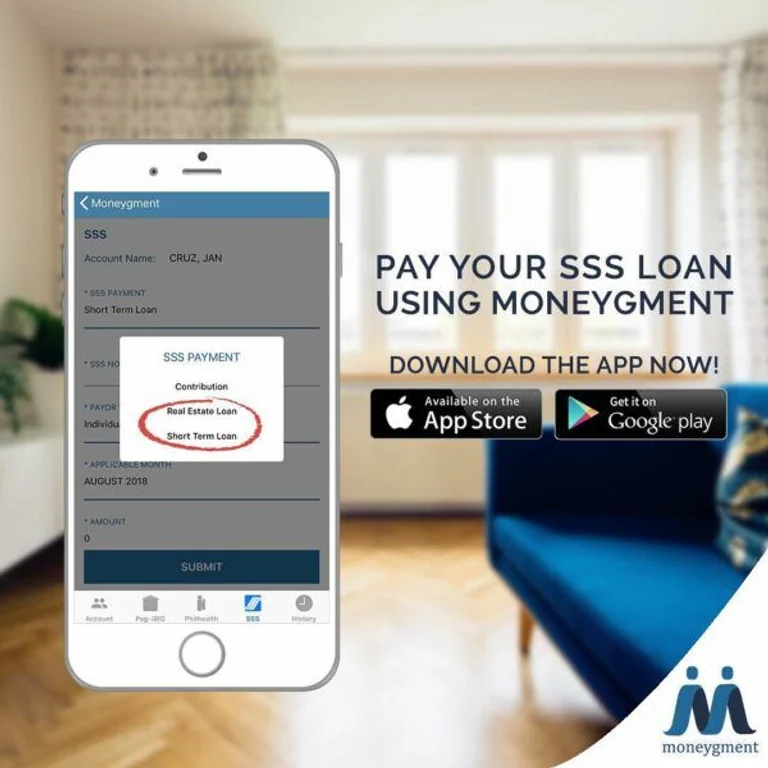
Moneygment App Guide - How to Pay SSS, PhilHealth, Pag-IBIG
With the Moneygment app, you can quickly settle all your contribution and loan payments to Pag-IBIG Fund, PhilHealth, and SSS. No need to visit each of these government offices and waste your precious time lining up.
Government contributions and loans paid via Moneygment are posted within two to three business days.
How to Pay Pag-IBIG Contribution or Loan via Moneygment
Take note:
How to Pay PhilHealth Contribution via Moneygment
Take note:
Employers who use the Moneygment app to pay for their employees' PhilHealth contributions are required to send the following additional documents to customercare@moneygment.ph:How to Pay SSS Contribution or Loan via Moneygment
- Open the Moneygment app and log in to your account.
- Tap the Pay Pag-IBIG, PhilHealth, and SSS icon.
- Tap the SSS tab at the bottom of the screen.
- Choose the type of SSS payment you'll make (Contribution/Real Estate Loan/Salary Loan).
- Toggle the button below the SSS Payment dropdown if you already have a Payment Reference Number (PRN) generated from the My.SSS portal[2]. Enter your PRN and tap the Submit button.
- Enter your SSS Member Number.
- Select your SSS membership type (Self-Employed/Voluntary/Non-Working Spouse/OFW).
- Choose the coverage period (start date and end date) you'll be paying for.
- Indicate the amount to pay.
- Tap the Submit button.
- Check your transaction summary and tap the Confirm button.
- Choose your preferred payment method and tap the Proceed button. You'll receive an email confirmation of your SSS contribution/loan payment.
Take note: If you don't have a PRN, no need to visit an SSS branch or generate it online. You can generate a PRN through the Moneygment app while using it for your SSS contribution/loan payment.
Related: How to Make Voluntary Contributions to Pag-IBIG, PhilHealth, and SSS
How to Pay Bills Using Moneygment App
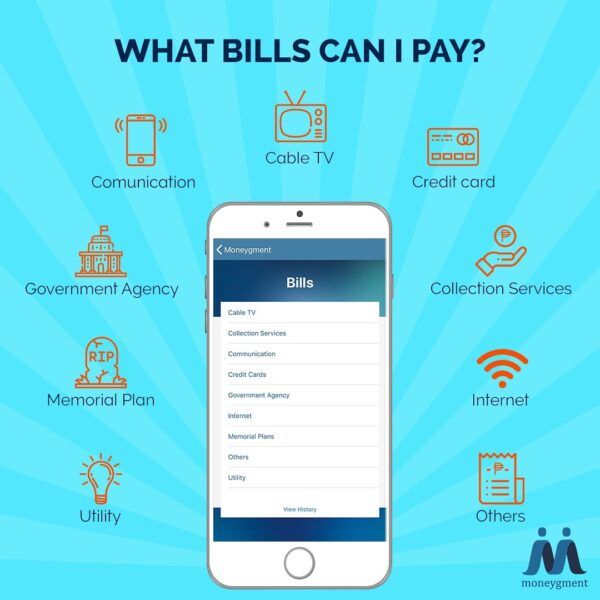
If you're looking for another way to pay bills online, consider the Moneygment app. It takes only a few smartphone taps to pay for utilities (electricity, water, etc.), internet services, credit cards, government documents (e.g., DFA passport, NBI Clearance, NSO birth certificate, etc.), loans, and more.
Take note:
Read more: Pay Bills Online with These Convenient E-Payment Services
How to Send Money Using Moneygment App
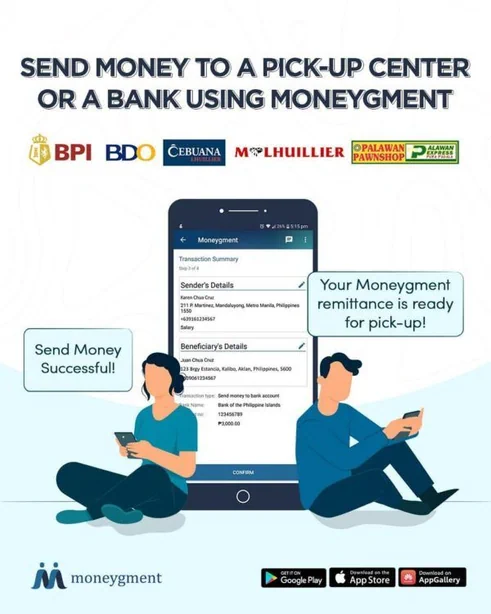
Moneygment App Guide - How to Send Money
Moneygment enables users to transfer money to their loved ones or pay for their online purchases through the Send Money feature. Funds can be transferred to someone's bank account or through a remittance center (for recipients who don't have a bank account).
Here's how it works:
- Deposit to Moneygment's Bank Account
- Moneygment Wallet
- ECPay
- DragonPay
- 7-Eleven
- PayPal (for Level 2 and 3 users only)
- Tap the Proceed button. You'll receive an email confirmation of your send money transaction. Expect the money to be credited to the recipient's bank account or be available for pickup within one to two working days.
Final Thoughts
Launched in 2018, Moneygment is a fairly new mobile payment app, with some hiccups here and there. Nevertheless, it's still useful and worth a try, especially if other online payment and remittance methods are unavailable.
Sources:
About the author

Venus Zoleta
Venus has almost 20 years of combined experience in content marketing, SEO, corporate communications, and public relations. Most of her career was spent creating informative articles on personal finance and digital marketing. She also invests in stocks, mutual funds, VUL, and Pag-IBIG MP2. Venus graduated cum laude with a Journalism degree from the University of the Philippines Diliman. A hardcore Hallyu Tita, she loves bingeing Korean shows on Netflix while bonding with her cats.
Related articles