Apple Pay is now available in the Philippines, giving iPhone and Apple Watch users another way to pay for everyday purchases without pulling out a physical credit or debit card. The service officially launched in the country on August 4, 2026, with initial support from banks like UnionBank, Metrobank, Chinabank, and GoTyme Bank. Eligible Visa and Mastercard credit, debit, and prepaid cards from participating issuers can be added to Apple Wallet.
But before you start tapping your phone at the checkout counter, there are a few things to know. Not every card from a participating bank is necessarily eligible, and your device and software also need to meet Apple's requirements.
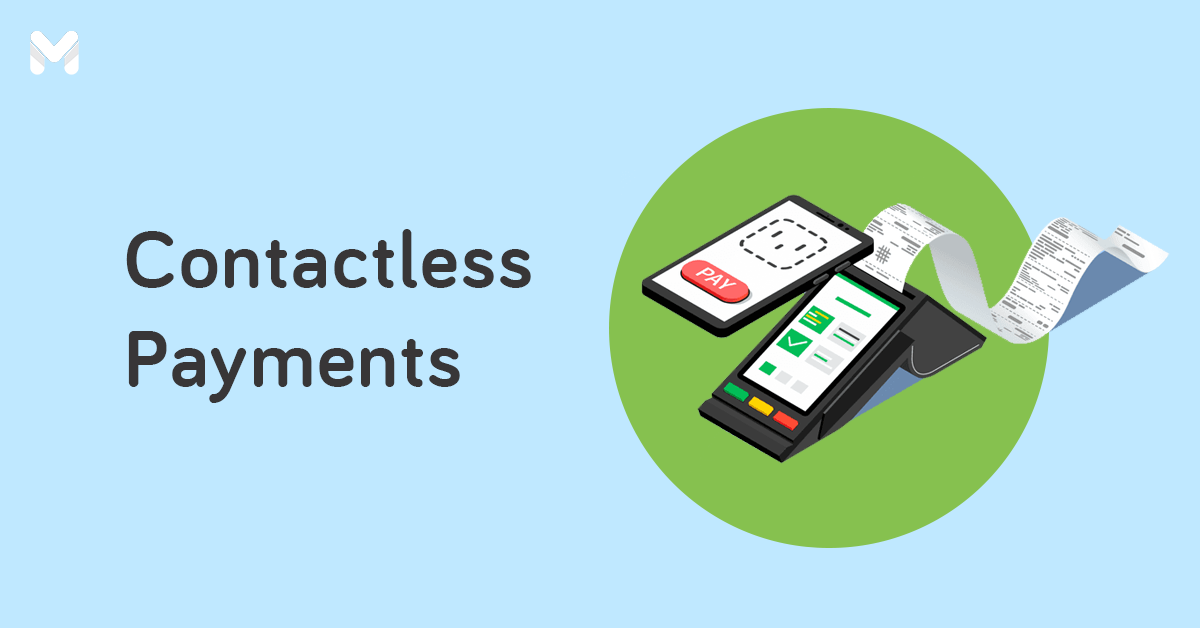
Related: Contactless Payment in the Philippines: What it is and How to Use it
What is Apple Pay?
Apple Pay is Apple's mobile payment service that lets you use an eligible credit, debit, or prepaid card through the Wallet app instead of using your physical card.
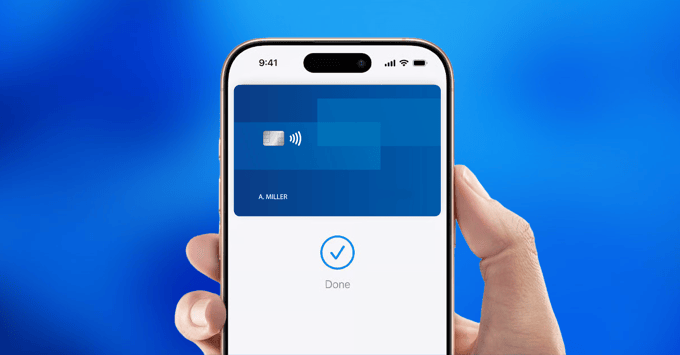
Once your card is added, you can use an Apple device to make contactless payments at participating stores. You can also use Apple Pay for purchases in apps and on websites that offer Apple Pay as a payment option.
However, Apple Pay doesn't replace your credit or debit card. Think of it as a digital version of your card that you can keep in your Apple device.
Which Banks Support Apple Pay in the Philippines?
As of writing, these banks support Apple Pay:
- UnionBank
- Metrobank
- Chinabank
- GoTyme Bank
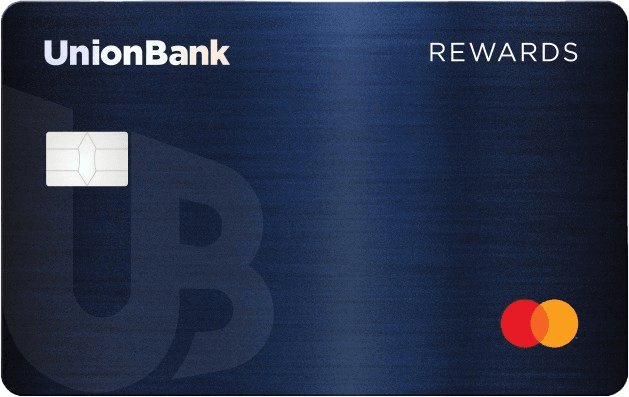
However, being issued by a participating bank doesn't automatically mean that every card from that bank can be added to Apple Pay. Apple specifically notes that some cards from participating issuers may not be supported. If you're unsure about a particular card, check with your bank or card issuer before relying on it for Apple Pay payments.
Which Cards Work With Apple Pay?
|
Credit Card |
Annual Fee |
Minimum Annual Income |
Best For |
|
|
₱ 0 (No Annual Fee) * ₱ 180,000 yearly spend requirement |
₱ 180,000 |
On-time payers |
|
|
₱ 0 (No Annual Fee) * ₱ 20,000 spend requirement from 60 days of approval |
₱180,000 |
Shopping and dining enthusiasts |
|
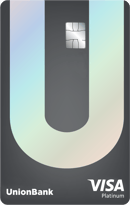
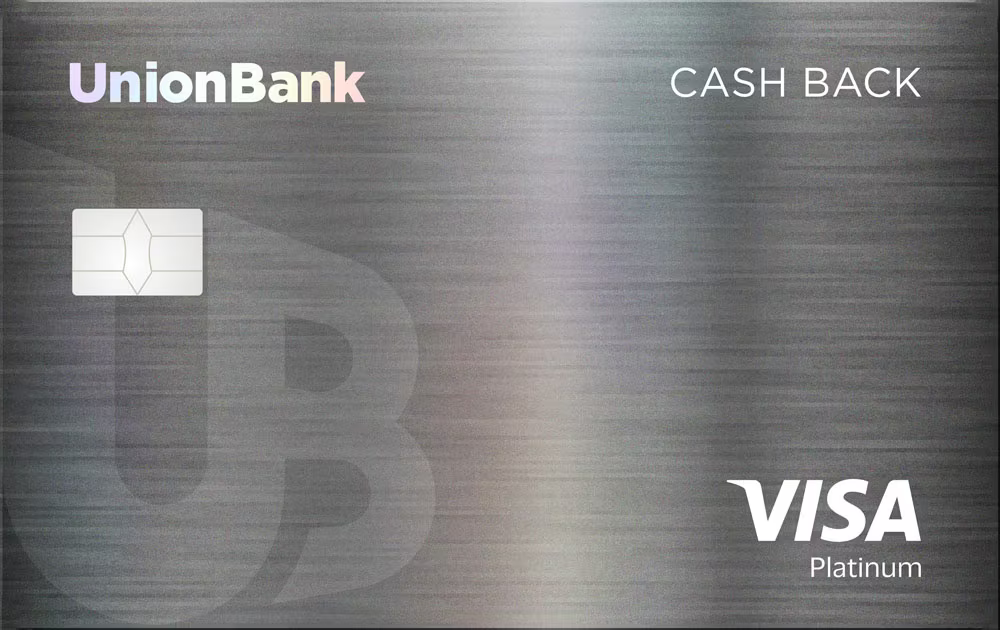
UnionBank Cash Back Visa Platinum
|
₱ 4,500 |
₱ 180,000 |
Grocery-heavy shoppers |
|
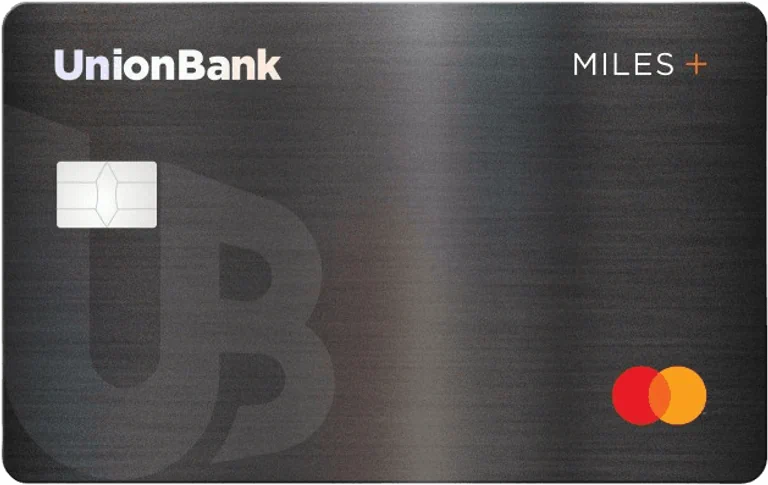
UnionBank Miles+ World Mastercard
|
₱ 5,000 |
₱ 360,000 |
Miles seekers |
|
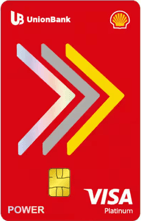
UnionBank Shell Power Visa Platinum
|
₱ 2,800 |
₱ 180,000 |
Car owners |
|
|
₱ 0 (No Annual Fee) * limited time offer |
₱ 180,000 |
Everyday shopper |
|
|
₱ 5,000 |
₱ 700,000 |
Foodies |
|
|
₱ 6,000 * waived on the first year |
₱ 1,500,000 |
Frequent flyers |
|
|
₱ 3,500 * waived on the first year |
₱ 180,000 |
Everyday spenders |
|
|
₱ 2,500 * waived on the first year |
₱ 180,000 |
Points seekers |
|
Metrobank Travel Signature Visa
|
₱ 5,500 * waived on the first year |
₱ 700,000 |
Luxury travelers |
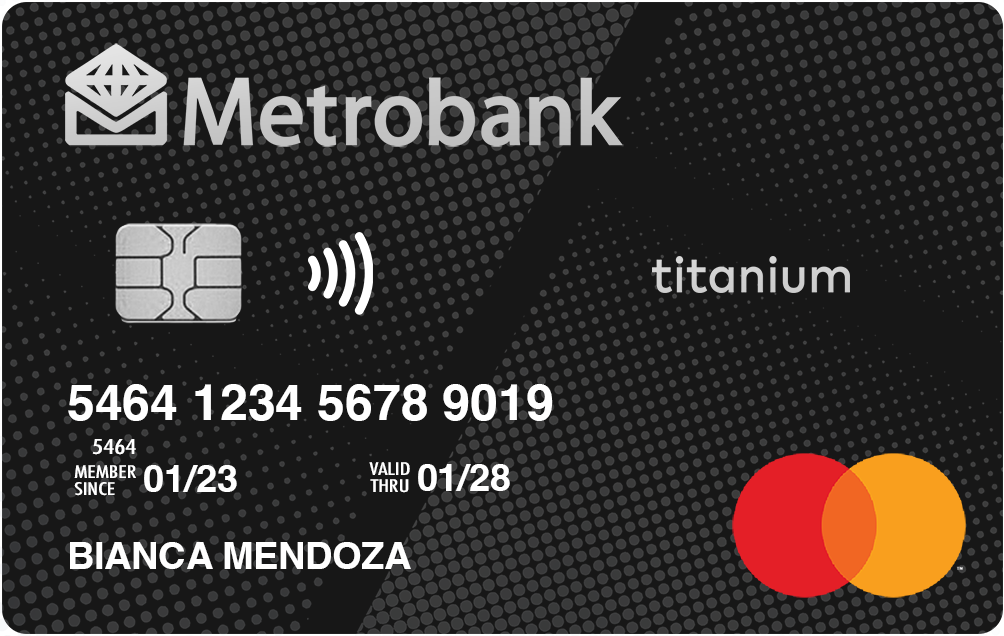
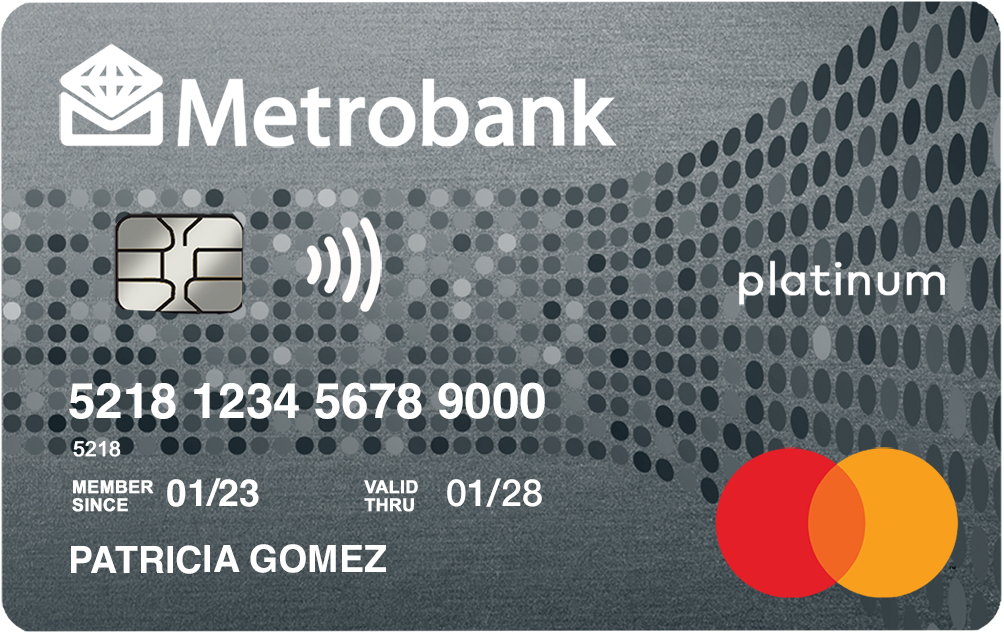
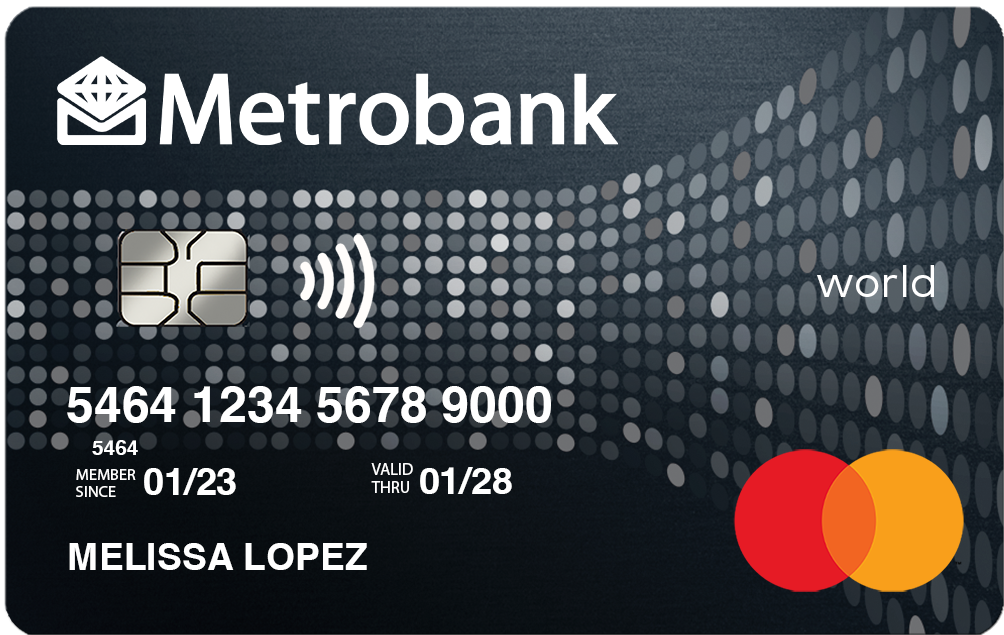
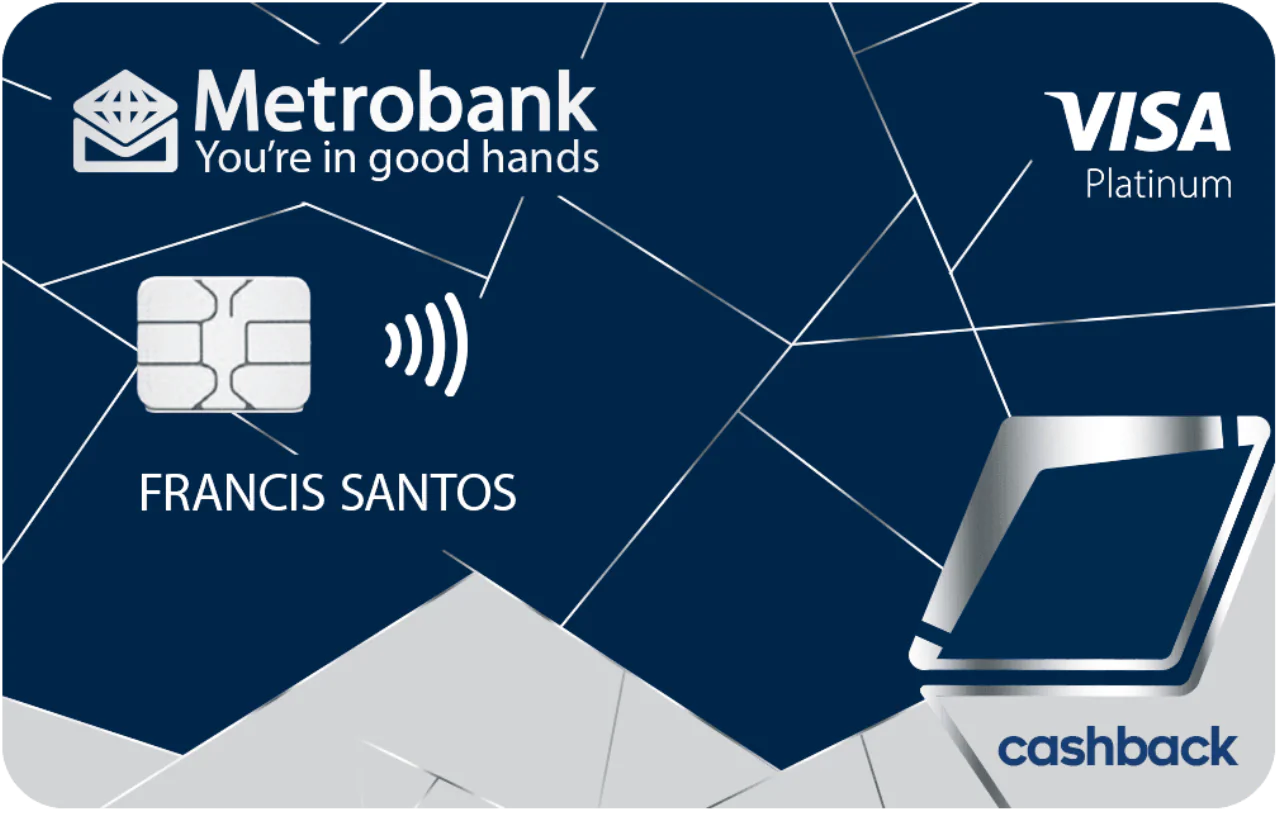
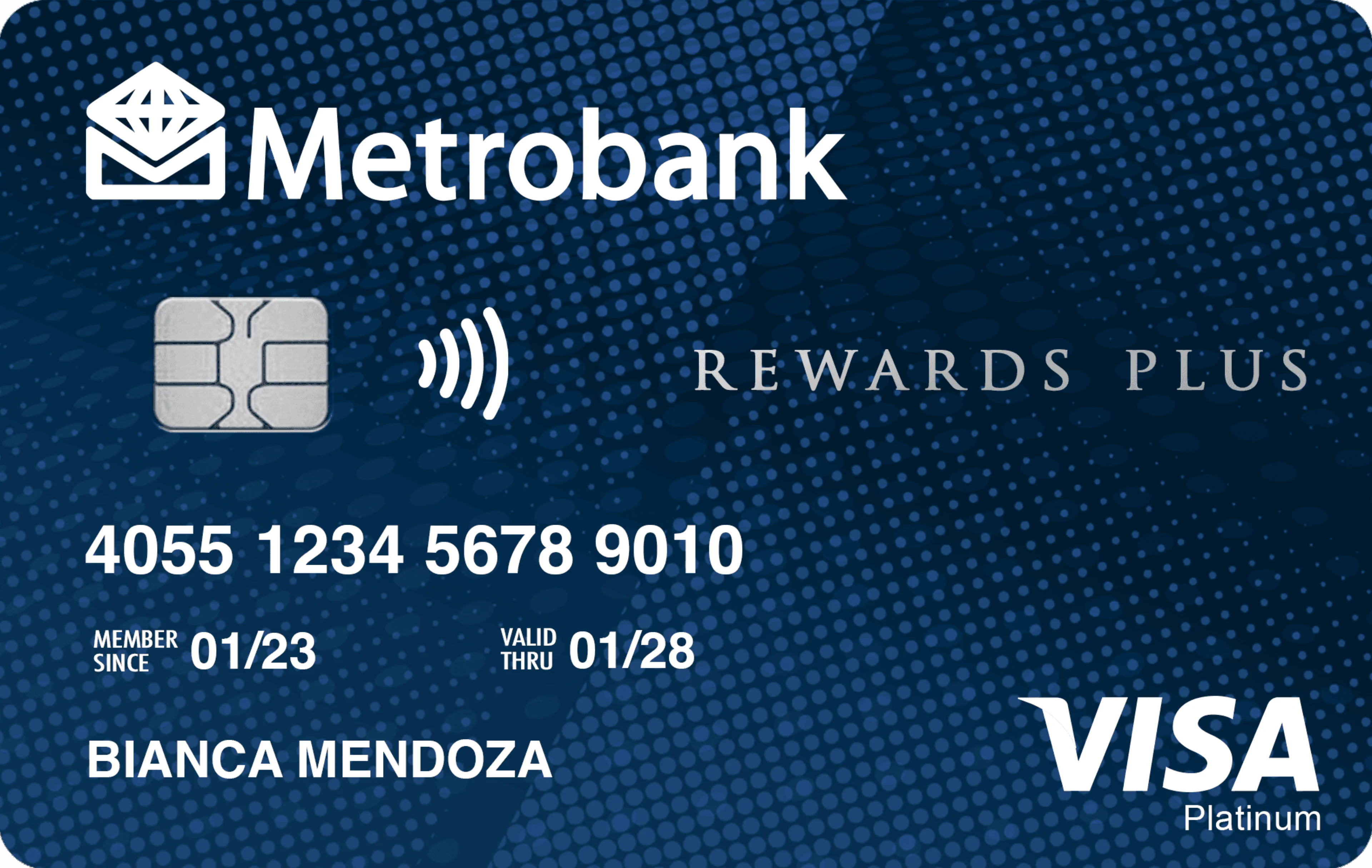
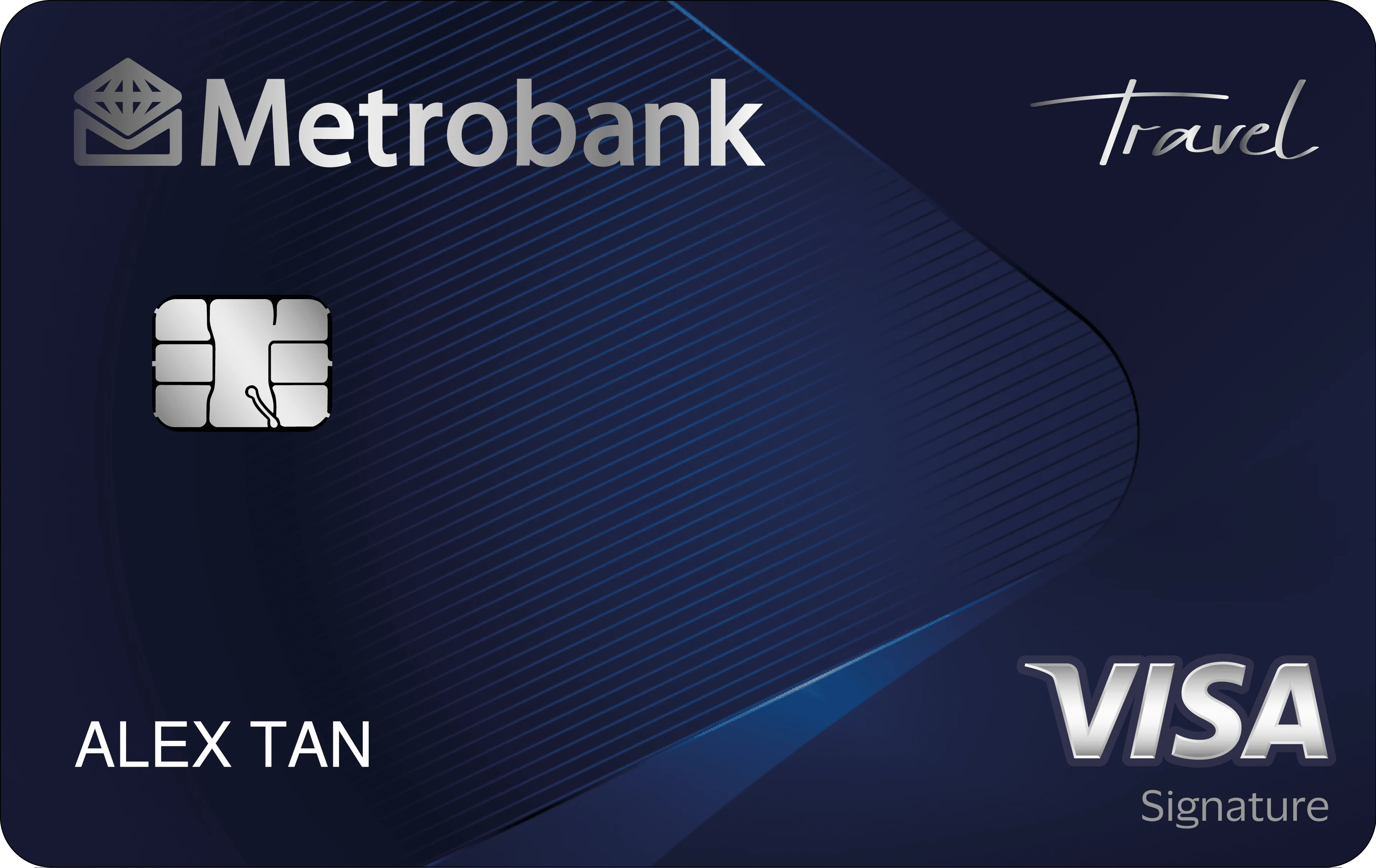
Additionally, these banks support Apple Pay:
|
Visa |
Mastercard |
|
|
UnionBank |
Credit and debit |
Credit and debit |
|
Metrobank |
Credit and debit |
Debit |
|
Chinabank |
Credit |
Credit and debit |
|
GoTyme Bank |
N/A |
Credit and debit |
As more banks and card issuers continue to adopt Apple Pay, this list is expected to expand over time. Users are encouraged to stay tuned and check for updates, as additional supported cards may become available in the future.
Moneymax Tip: If you're choosing a new credit card specifically for mobile payments, don't pick based on Apple Pay compatibility alone. A card that works with Apple Pay but doesn't match your spending habits may not be the best fit for you.
What You Need Before You Start
Before adding your card to Apple Pay, make sure you have the following:
A compatible Apple device
Apple Pay can be used across compatible iPhone and Apple Watch models, as well as supported iPad and Mac devices for online and in-app purchases. Your device should also be updated to a supported version of iOS, watchOS, iPadOS, or macOS.
Face ID, Touch ID, or a passcode
You need to have a device passcode or biometric authentication such as Face ID or Touch ID enabled. These security features help authorize Apple Pay transactions.
An eligible credit or debit card
Your card must come from a participating bank or card issuer and be eligible for Apple Pay. Some cards from participating issuers may not qualify.
Your bank's verification details
Your bank may ask you to verify your identity before your card can be added. Depending on the issuer, this can involve an OTP or another verification method.
Make sure your contact information is updated with your bank so you can complete the verification process smoothly.
How to Set Up Apple Pay
Adding an eligible card to Apple Pay only takes a few steps.
iPhone
- Open the Wallet app
- Tap the Add Card (+) button
- Choose Debit or Credit Card
- Follow the instructions to add your card
- Scan your physical card or enter the card information manually when prompted
- Complete any verification required by your bank
- Once your bank approves the card, it will appear in your Wallet and can be used with Apple Pay
Your bank may require additional information or verification before approving the card.
Once your card is added, you can select it as your default payment card or choose another card when paying.
Apple Watch
You can also add an eligible card directly to your Apple Watch or through the Apple Watch app on your iPhone.
Using your iPhone:
- Open the Apple Watch app
- Tap My Watch
- Select Wallet & Apple Pay
- Tap Add Card or tap Add beside a card already added to your iPhone
- Follow the instructions and complete your bank's verification process
Apple notes that you can add an eligible card from a participating issuer to Apple Watch, although the issuer may require additional verification.
Once your card is set up, you can use your Apple Watch to make contactless payments without taking your iPhone out of your pocket.
Where Can You Use Apple Pay in the Philippines?
You can use Apple Pay wherever Apple Pay or compatible contactless payments are accepted.
At launch, Apple highlighted participating merchants and services including Jollibee, Ayala Malls, Power Mac Center, Smart, and more. In addition, you can use Apple Pay for apps and websites like Shopee, foodpanda, Beauty Bar, and Rustan’s, among others.
For in-store purchases, look for a contactless payment symbol or ask the merchant if contactless card payments are accepted.
To pay using your iPhone, double-click the side button, authenticate with Face ID or your passcode, then hold the top of your iPhone near the contactless reader. With Apple Watch, double-click the side button and hold the display near the reader.
Apple Pay Not Working? Here's What to Do
Having trouble adding or using your card? Try these steps:
1. Check whether your card is eligible
Your bank may participate in Apple Pay while your specific card doesn't. Check with your card issuer if you're unsure.
2. Update your device
Make sure your iPhone, Apple Watch, iPad, or Mac is running a supported operating system.
3. Check your bank details
If your bank requires OTP or another verification method, make sure your registered contact information is up to date.
4. Try adding the card again
If the setup fails, remove the unsuccessful attempt and try adding the card again through Wallet.
5. Check the merchant's payment terminal
If your card works elsewhere but fails at one store, the issue may be with the merchant's terminal or its acceptance of contactless payments.
Beyond Convenience: Building Better Financial Habits
Apple Pay is one example of how technology is making everyday payments faster, easier, and more convenient. However, using new payment tools is only one part of achieving financial wellness.
It’s just as important to understand how your credit card works — its rewards, annual fees, cashback, travel benefits, and spending requirements. This knowledge helps you make smarter financial decisions and get more value from every transaction.
That’s where Moneymax comes in.
As a digital financial decision partner, Moneymax helps Filipinos better understand and compare financial products like credit cards, loans, and insurance. By simplifying the details and highlighting the best options for your needs, Moneymax empowers you to make more informed financial choices.
Make Smarter Payments With Apple Pay
Apple Pay offers Filipinos a more convenient way to pay, offering a hassle-free payment experience whether in-store or online. If you already have an eligible card from a participating Philippine bank, setting up Apple Pay can make everyday payments easier while still letting you enjoy your card’s existing benefits.
As digital payments continue to evolve, Moneymax is here to help you navigate the choices that come with them. From comparing credit cards to understanding their features and benefits, we give you the information you need to make smarter financial decisions at every step.
Because technology can make paying easier — but financial knowledge helps you make every payment count.

Apple Pay Philippines FAQs
Is Apple Pay available in the Philippines?
Yes. Apple Pay officially launched in the Philippines on August 4, 2026.
Which Philippine banks support Apple Pay?
The initial participating banks are Chinabank, GoTyme Bank, Metrobank, and UnionBank. However, not every card from these banks is necessarily supported, so check with your card issuer for specific card eligibility.
Can I use my credit card with Apple Pay?
Yes, if your credit card is eligible and issued by a participating bank. Eligible debit and prepaid cards may also be supported.
Is Apple Pay safe?
Apple Pay is designed with security features including device authentication and tokenization. Your actual card number isn't shared with merchants during an Apple Pay transaction. Apple instead uses a Device Account Number associated with your device.
Can I use Apple Pay without an internet connection?
For many in-store contactless transactions, your device does not need to be actively connected to the internet at the moment you tap to pay. However, certain setup, verification, online, or app-based functions may require an internet connection.
Can I use Apple Pay on Apple Watch?
Yes. Eligible cards can be added to Apple Watch, allowing you to make contactless payments using the watch.
Does Apple Pay charge a fee?
Apple does not charge consumers an additional fee simply for using Apple Pay. However, your card issuer's normal fees, foreign transaction charges, interest, or other applicable card terms may still apply.
What should I do if my card won't add to Apple Pay?
First, confirm that your bank and specific card are supported. Then check your device software and complete any verification steps requested by your bank. If you're still unable to add the card, contact your card issuer for assistance.
 Back to Blog